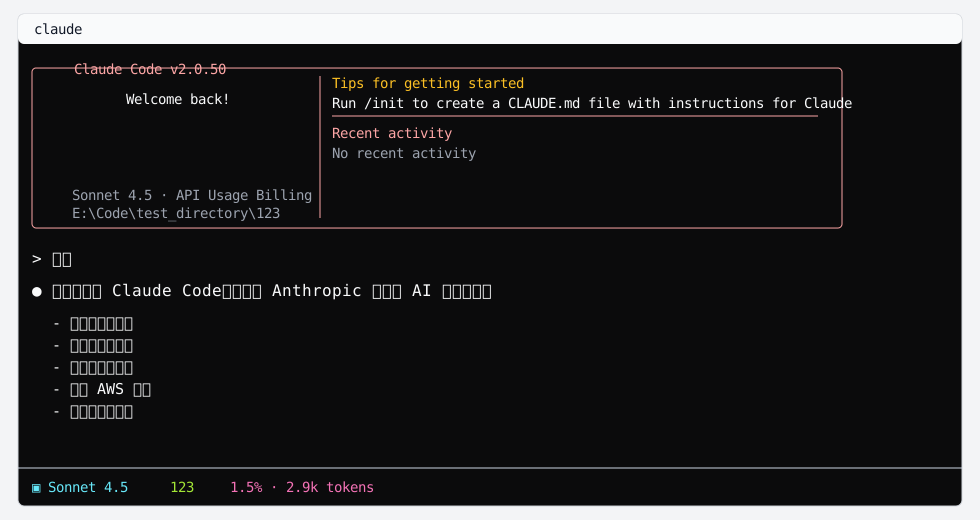
Claude Code CLI requires Node.js and npm. After installation, run claude at least once so Claude Code creates its configuration files in your user directory.
1. Check Node.js
Run the following commands in Windows Terminal, macOS Terminal, or a Linux shell:
node --version
npm --version
command not found, or cannot display version numbers, install Node.js first. You can refer to the Node.js installation guide, then run the checks again.
We recommend installing the Node.js LTS version. After installation, reopen your terminal and run node --version and npm --version.
2. Install Claude Code CLI
After Node.js is available, install Claude Code globally:
npm install -g @anthropic-ai/claude-code@latest
3. Initialize Claude Code
Run Claude Code once after installation:
This step is important. Claude Code creates its configuration directory and files in your user directory. These files are needed later when configuring the DUIAPI base URL, model, and API key.
If an interactive screen opens, or you see login, model, or configuration prompts, Claude Code started successfully.